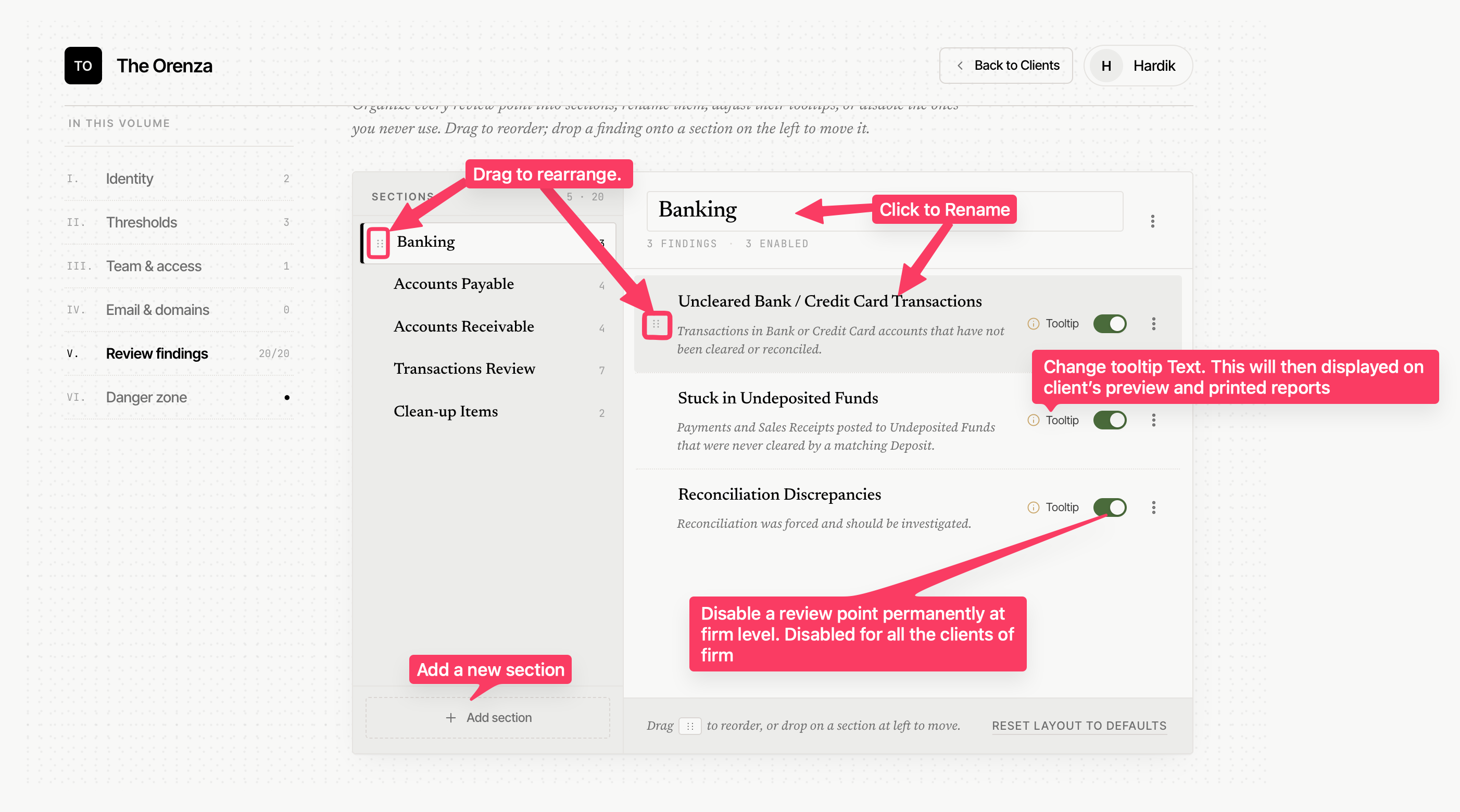
Hide Review Findings from the report
In case if you want to hide any particular review findings from the report, then, you may click the Eye icon to hide it. Click the same eye icon again to unhide it.
For example, there are review findings related to Account Payable like ‘Negative Vendor Balance’, ‘Past Overdue invoices’ etc. and if the prospect for which you’re preparing this report follows cash basis accounting, then, you may want to hide these review findings from the report.
Please note that this is a client specific setting and won’t impact the other clients.
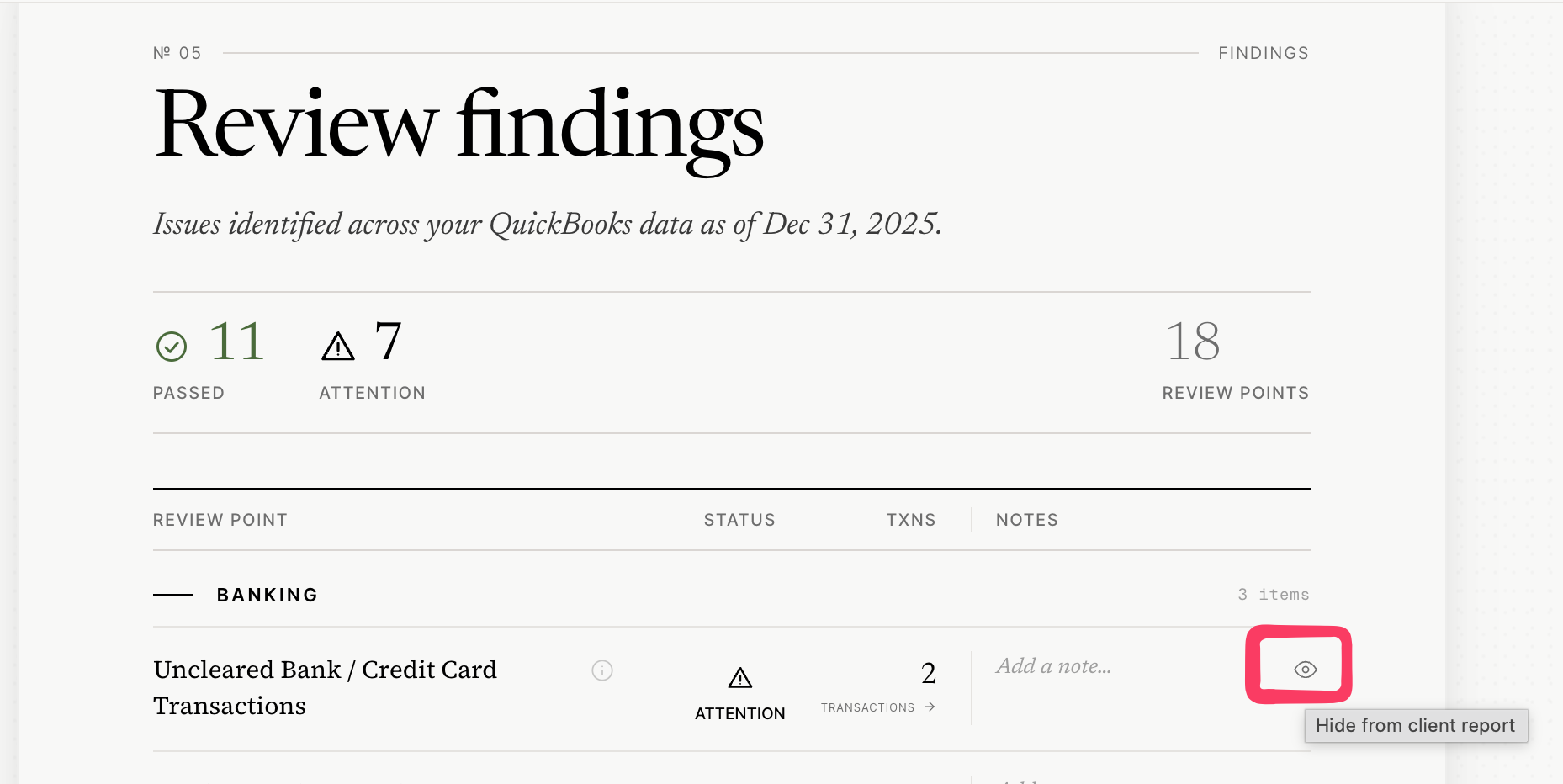
Override the Status of Review Findings
Xenett Pulse automatically assigns a status to the review findings based on the review findings’ type. However, for whatever reason, in case if you want to override the status of the review findings, then, you may do so by clicking on the review findings status.
To reset the status back to the default, click on the same status again and you will be able to revert it.
As you change the status of the review findings, we do keep a log of the same to display the same to track who changed, when.
Please note that this is a client specific change and won’t impact the other clients.
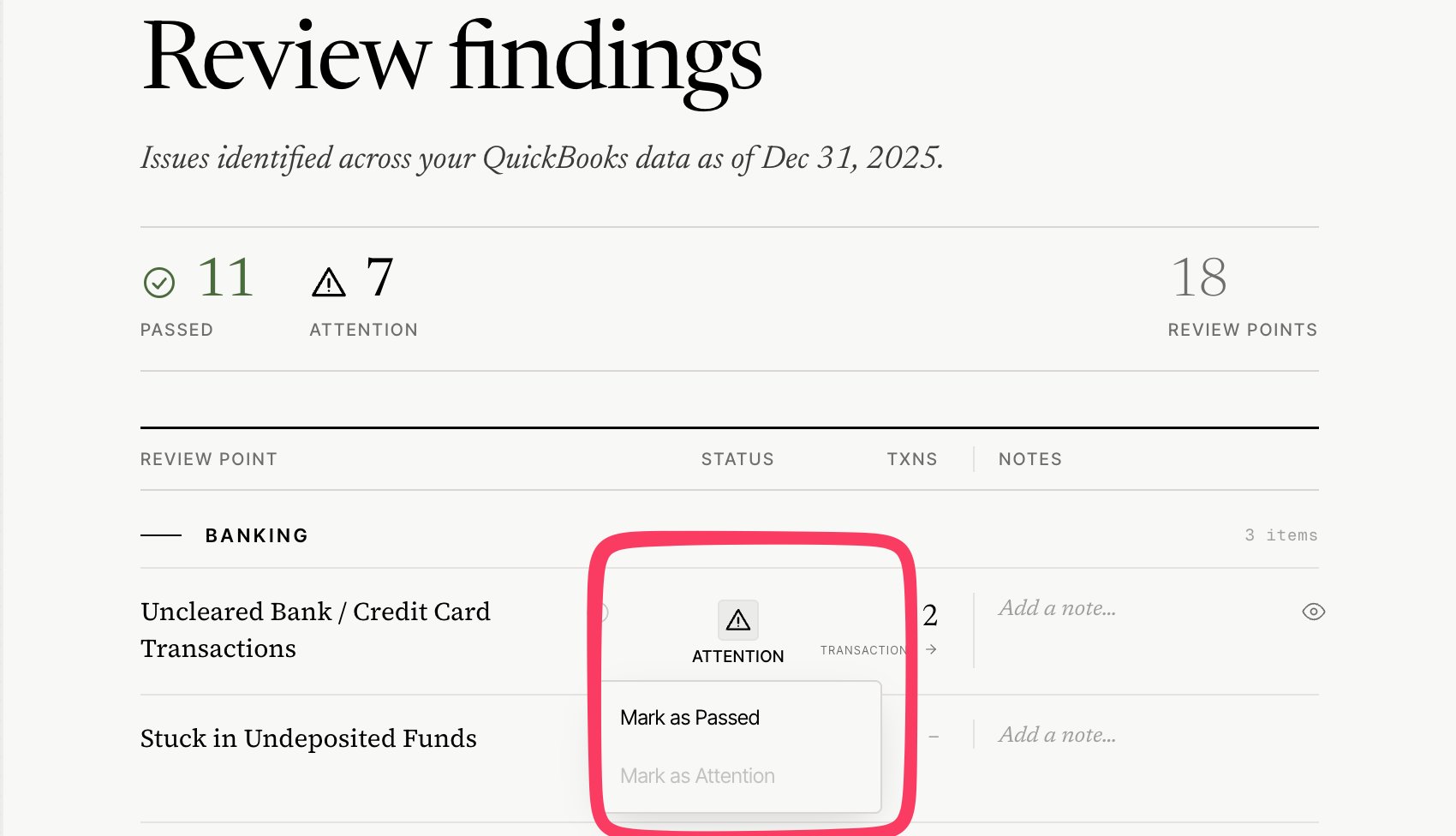
Leave a note for Review Findings
As you think necessary, you may also leave a note for each review finding, which might help prospective clients to understand the review findings better. This is a client specific thing and won’t impact the other clients.
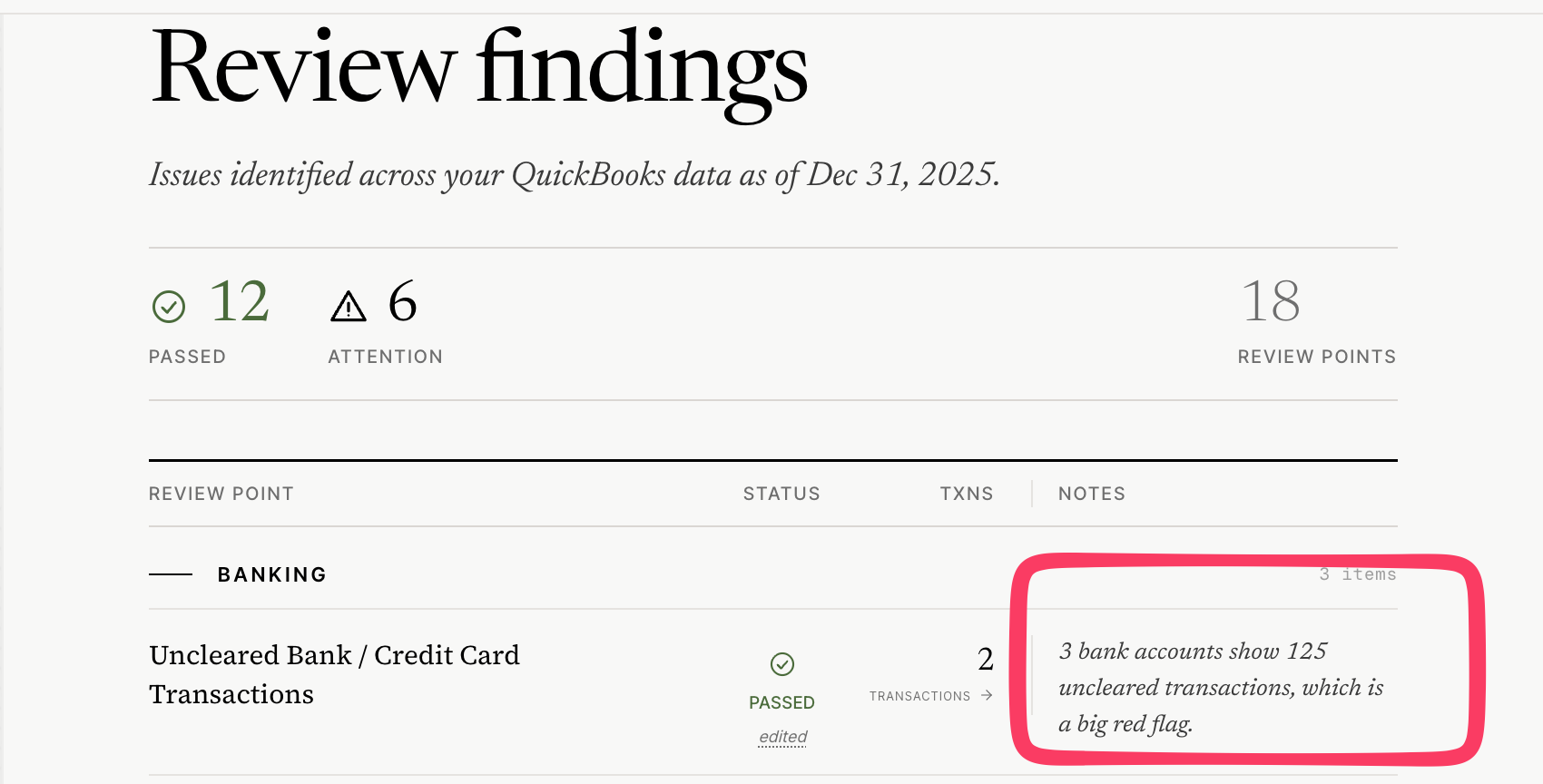
Review Findings (Firm Level Settings)
From the firm level, there are a few settings related to the review findings.
You may change the order of Review Findings.
Change the tooltip for the Review Findings( Firm Level Settings)
Create new sections.
Edit the sections and review findings names.
Permanently hide the review finding from all clients (Firm Level Settings)
Change the tooltip for the review findings (It would then show up in the report).
Any changes that you make here at firm level will be applicable to all the clients.